In Megaphone Studio, user accounts can be created by a Megaphone Team Manager in the Team tab. A Team Manager is a user that has the Team role.
To create a user account, follow the steps below.
Step 1: Open Account Settings
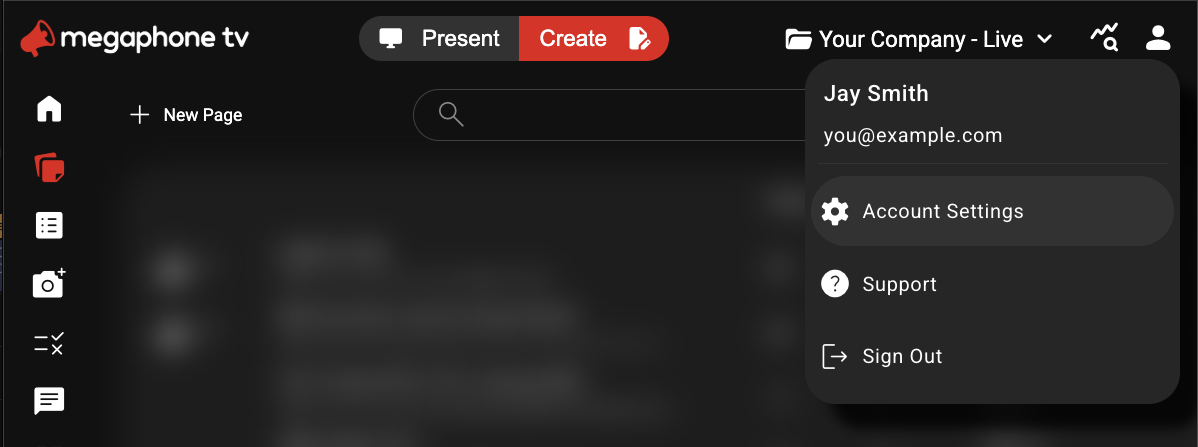
In the top-right corner of Megaphone Studio, click the User icon, then choose Account Settings.
Step 2: Open the Team Tab
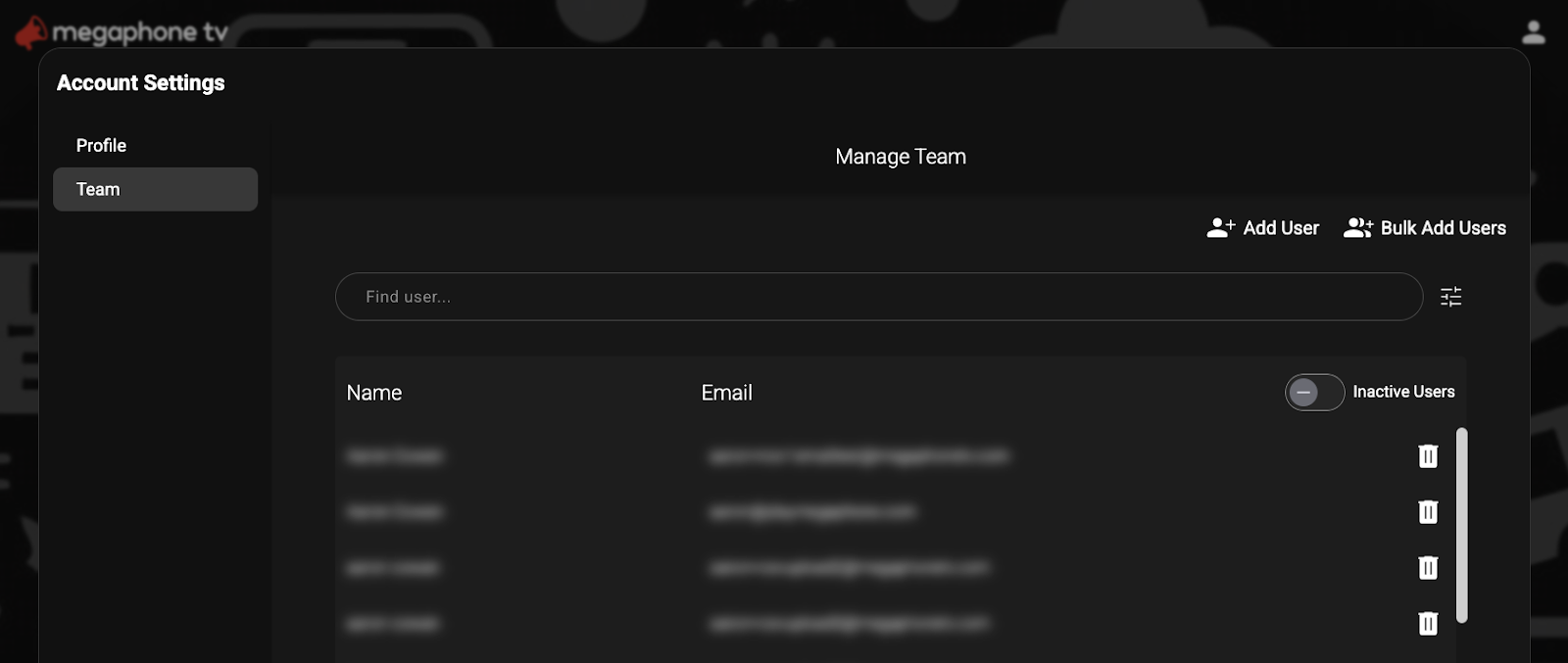
In Account Settings, select Team. A list of users that you have access to will appear. If you don't see the Team tab, you don't have the Team role, and you'll have to ask a Team Manager at your organization to create users for you.
Step 3: Select + Add User
In the top-right of the Team tab, click + Add User. Alternatively, if you need to add multiple users at the same time, click "Bulk Add Users" instead and follow the steps in the bulk-user addition tool.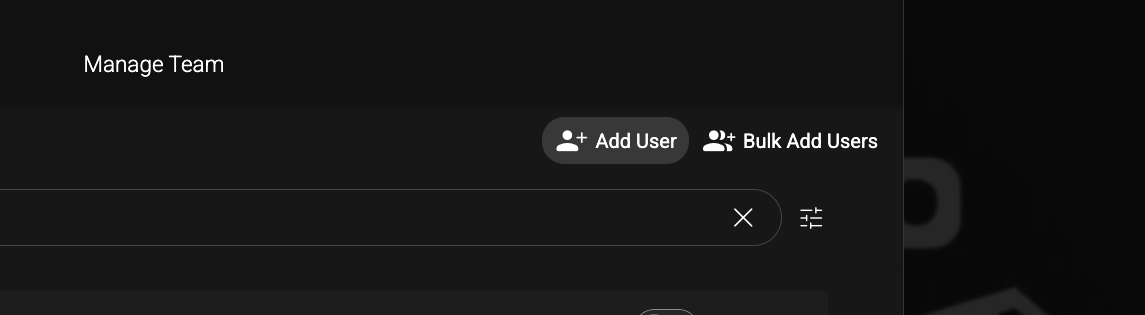
Step 4: Add User Info and Roles
Fill in the user's info and select the user's roles, then click Add User. For information on user roles, see How to Add or Remove User Roles.
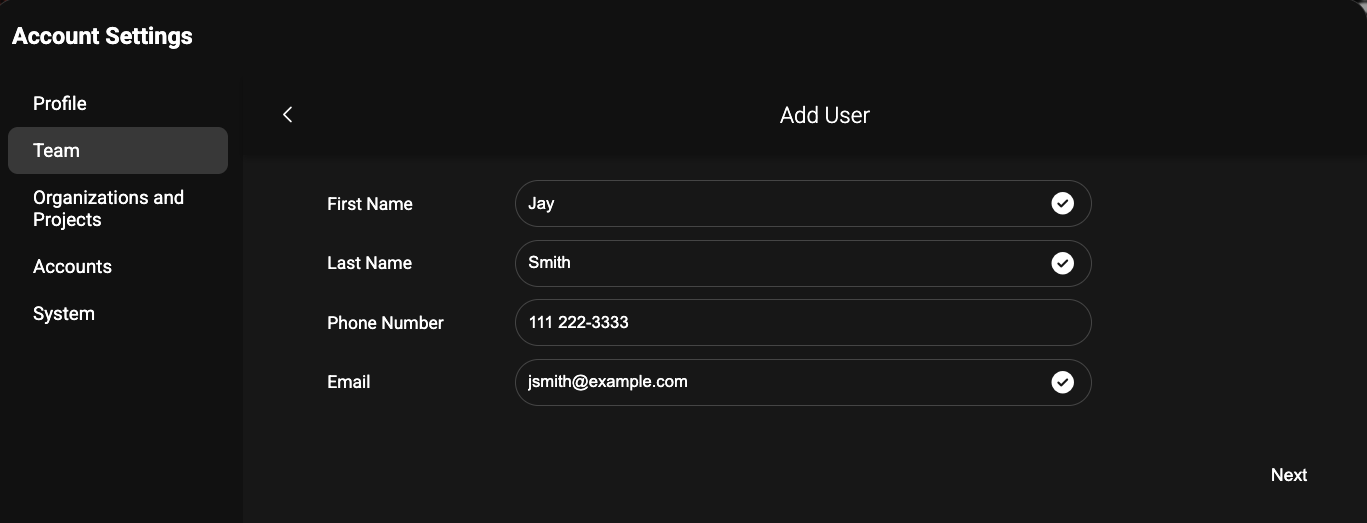
Once the user account is created, the user will receive a welcome email from Megaphone with instructions on signing in for the first time.
Was this article helpful?
That’s Great!
Thank you for your feedback
Sorry! We couldn't be helpful
Thank you for your feedback
Feedback sent
We appreciate your effort and will try to fix the article