To create a Megaphone Studio user with Okta, different people must complete different tasks, as follows:
- An Okta admin must grant access to Megaphone
- If SCIM provisioning is NOT enabled, the owner of the user account being created must then sign into Megaphone Studio through Okta.
- The user's Team Manager (someone with the Team role in Megaphone Studio) must assign roles to the user in Megaphone Studio
To create a new Megaphone Studio user with Okta, follow the steps below.
Step 1) Okta Admin: Grant Access to Megaphone
1) Sign into Okta as an admin.
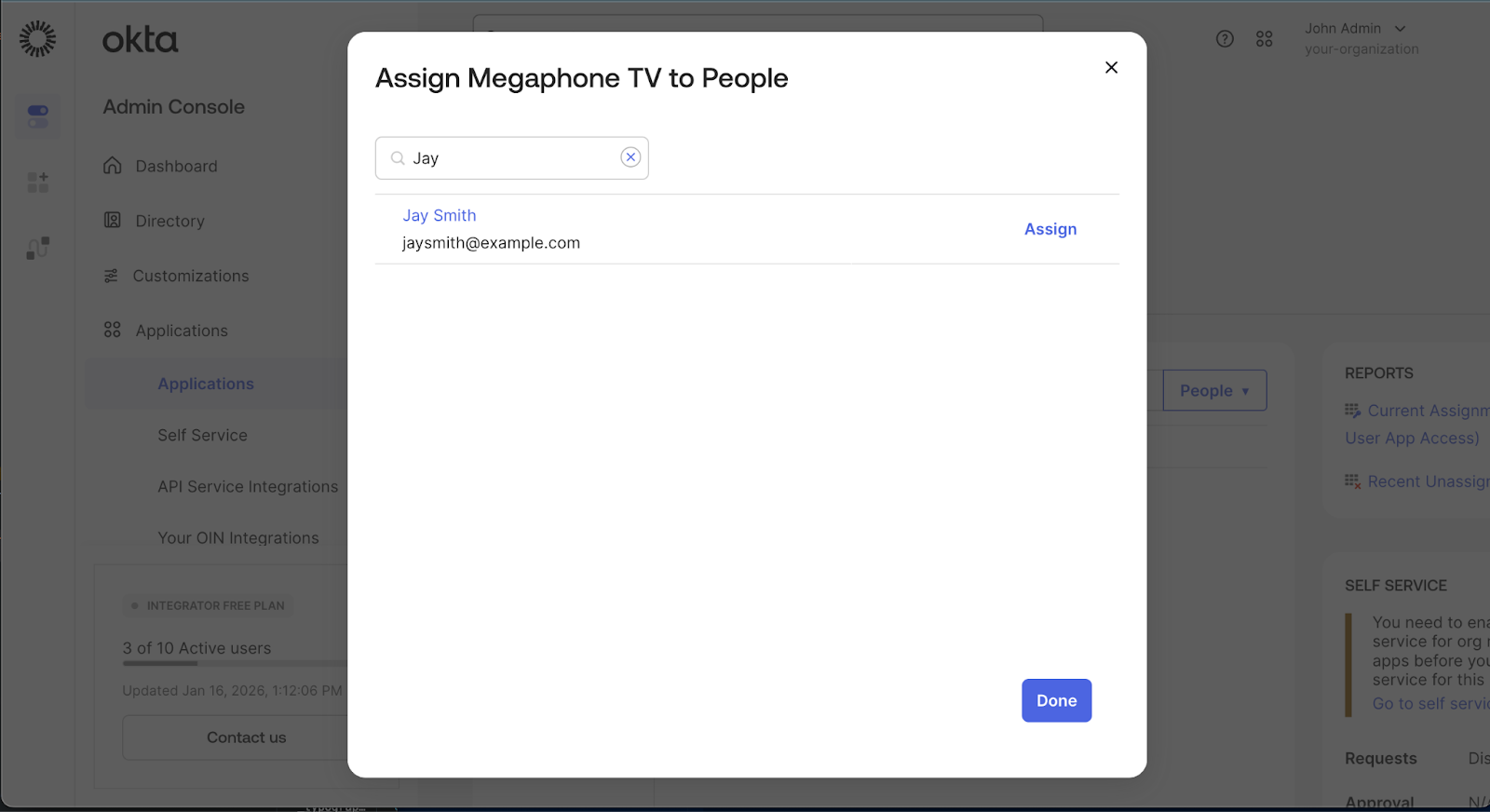
2) In the Okta dashboard, assign the Megaphone TV application to the desired Okta user.
Step 2) New User: Sign Into Megaphone Through Okta
If Okta SCIM provisioning is enabled for your organization, this step is automatic. Skip to Step 3. |
If Okta SCIM provisioning is NOT enabled for your organization, then after the user has been granted access to Megaphone Studio in Okta, that user must follow these steps to sign into Megaphone Studio:
- 1) Sign into the Okta dashboard.
- 2) Click Megaphone TV to sign into Megaphone Studio.
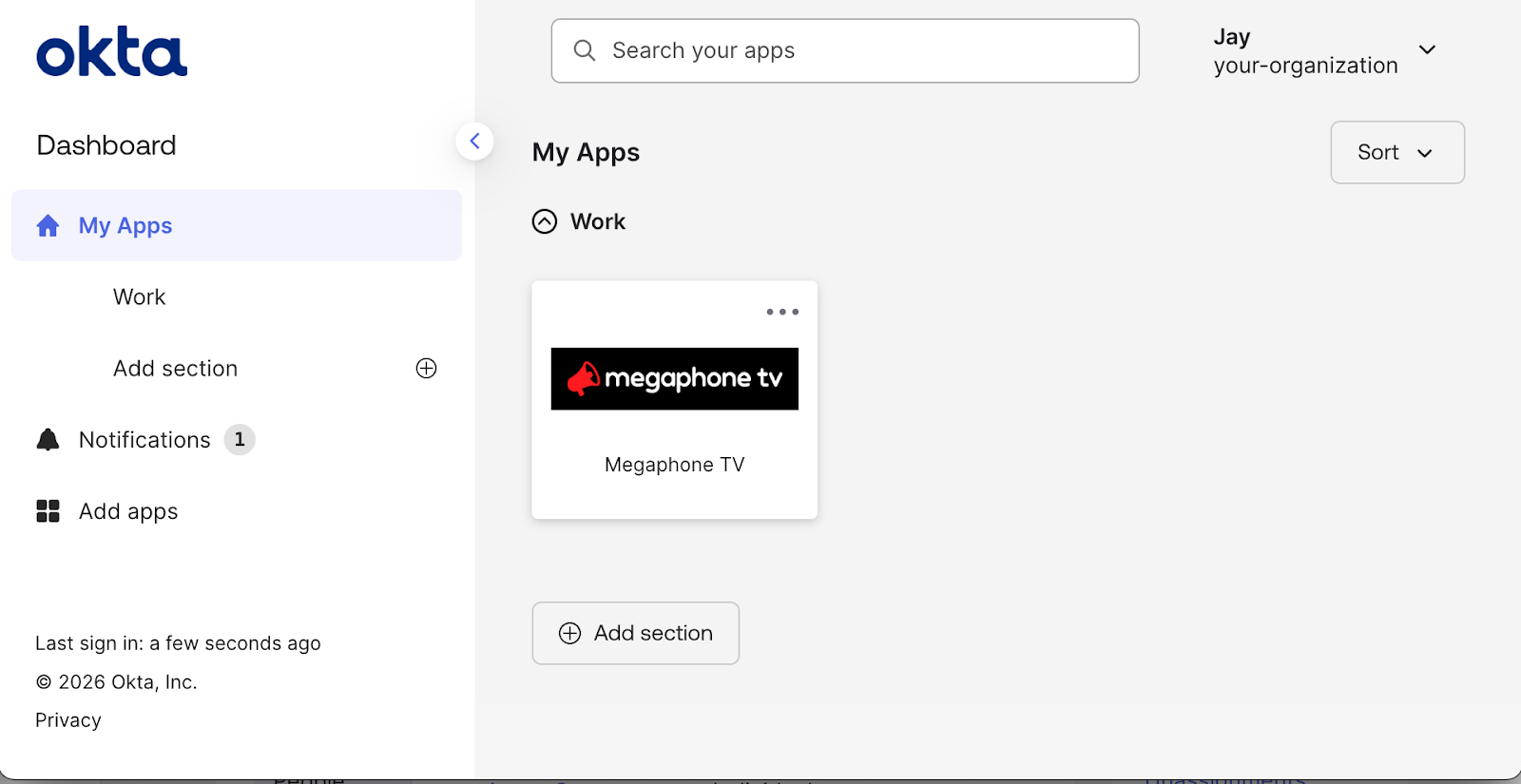
When the new user signs in through Okta, Megaphone Studio automatically creates a corresponding Megaphone user account.
Step 3) User's Manager: Assign Roles
Now that the new user has a Megaphone Studio account, a Team Manager must grant the user access to the desired Megaphone projects.
A Team Manager is a Megaphone Studio user that has the Team role, which allows them to grant access to content creation, operations, and usage statistics. |
As a Team Manager, follow these steps:
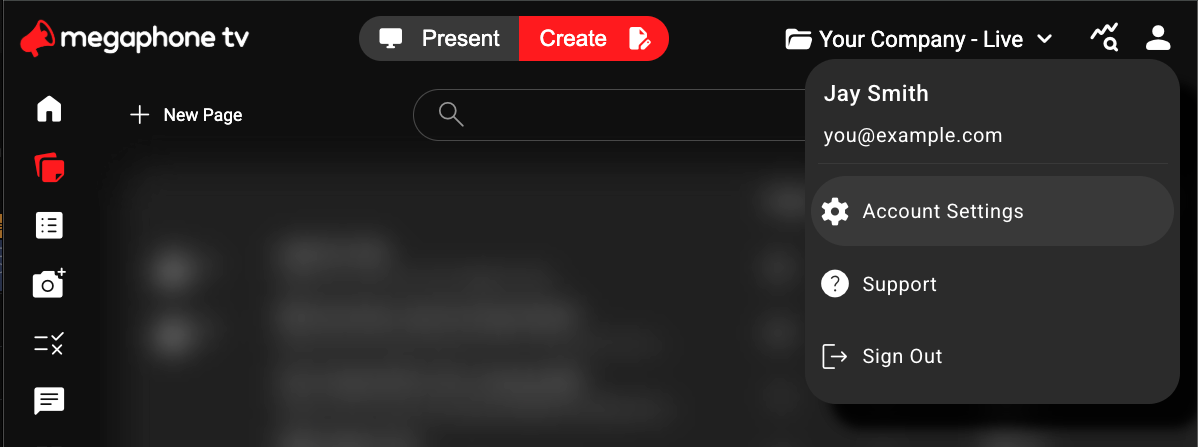
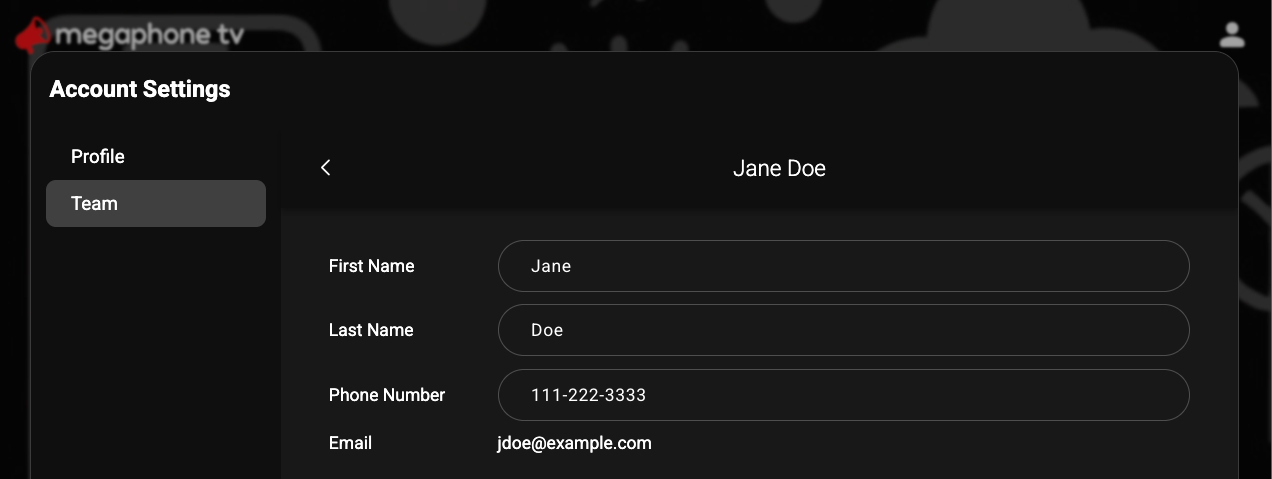
- In Megaphone Studio, open Account settings.
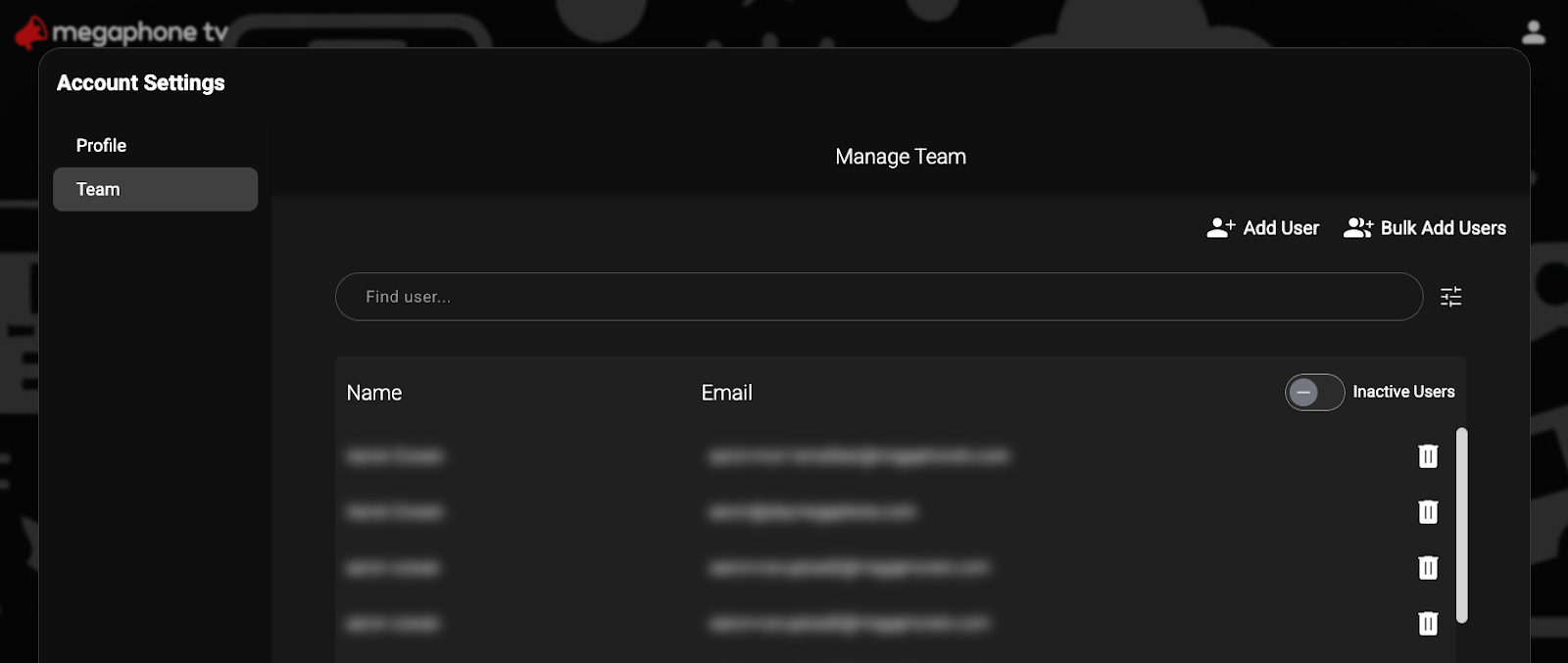
- In Account Settings, select the Team tab.
- In the Team tab, select the user.
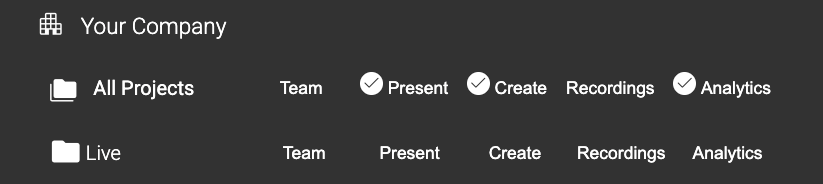
- Under Add Roles, select the desired roles. For example, to give the user access to Studio's Present tab, Create tab, and usage statistics, select Present, Create, and Analytics, as shown below. To learn more about Roles, see How to Add or Remove User Roles.
You're All Done!
Once the new Megaphone Studio user has been assigned roles, they can sign into Megaphone Studio through Okta and access Megaphone projects. Remember that all Okta-linked Megaphone Studio users must always use Okta to sign in. Attempts to sign into Megaphone Studio directly will be politely refused.
Was this article helpful?
That’s Great!
Thank you for your feedback
Sorry! We couldn't be helpful
Thank you for your feedback
Feedback sent
We appreciate your effort and will try to fix the article