To create a form in Megaphone Studio, you'll need to create a Fill-in Form Offer and then add that Offer to a MegaPage. The steps below explain how.
Create the Fill-in Form Offer
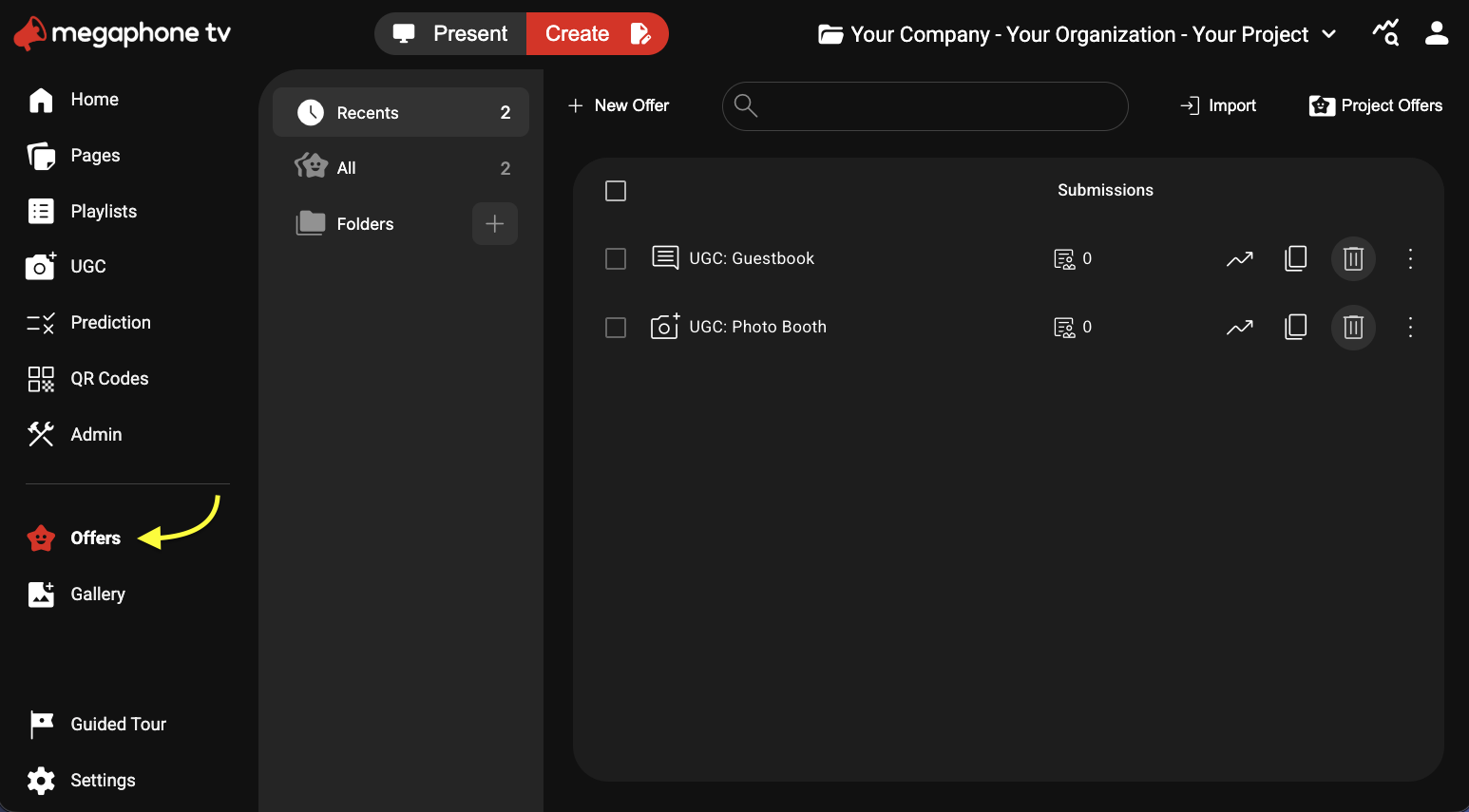
1) In Megaphone Studio, select Create > Offers.
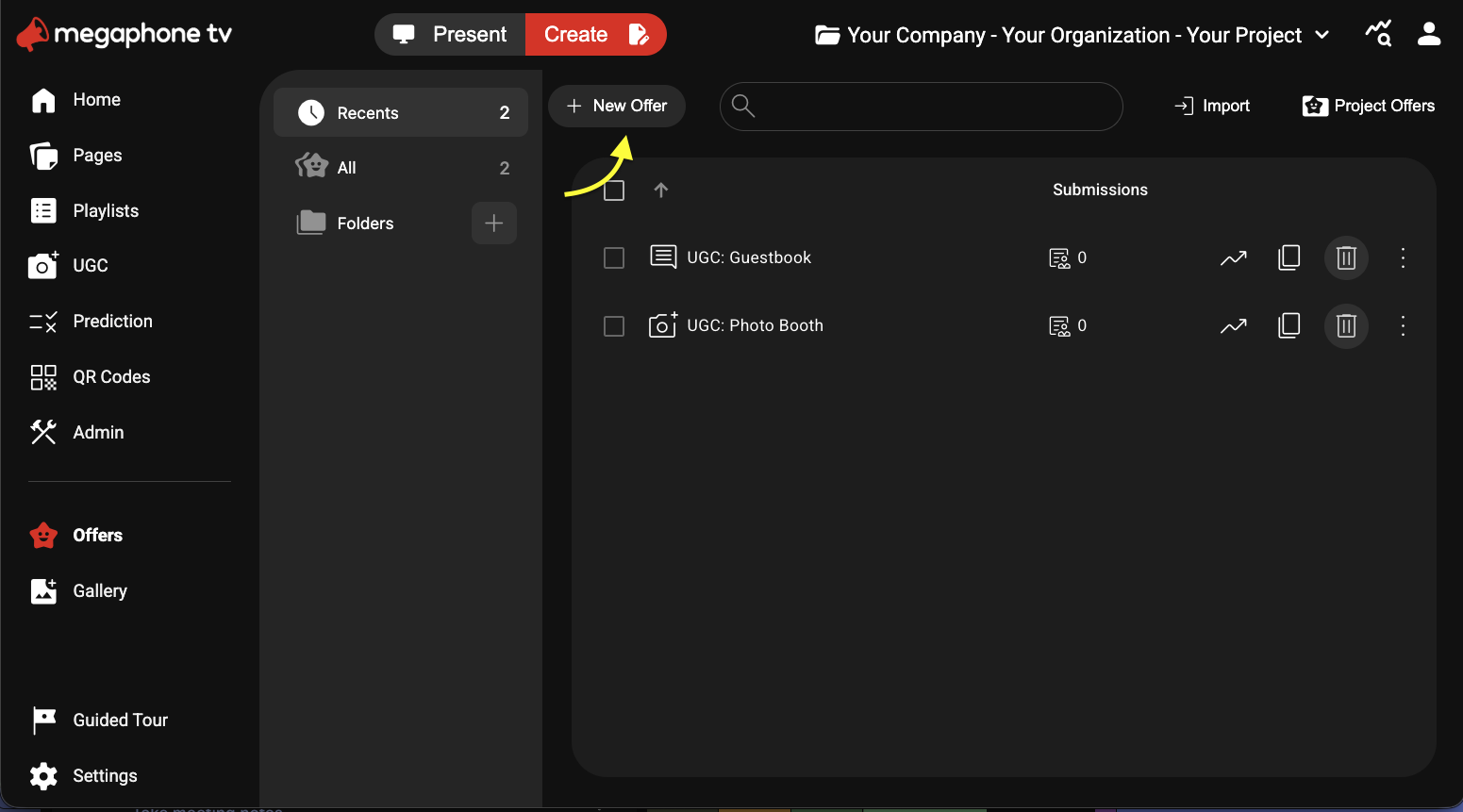
2) Select + New Offer.
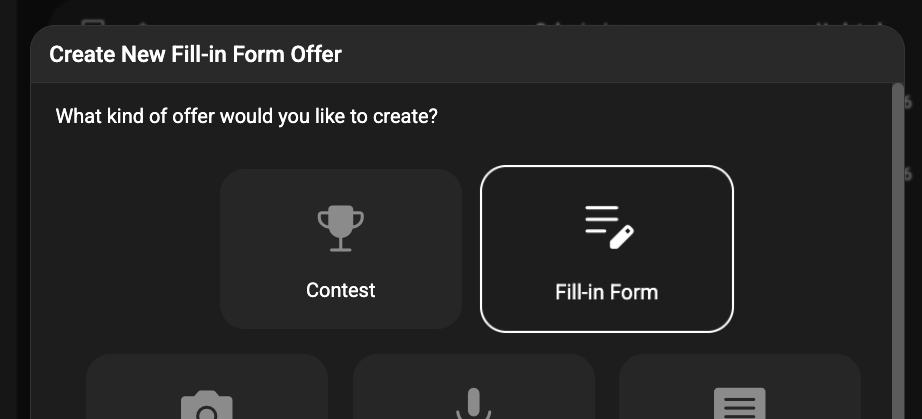
3) Under "What kind of offer would you like to create?" choose "Fill-in Form", then click Next.
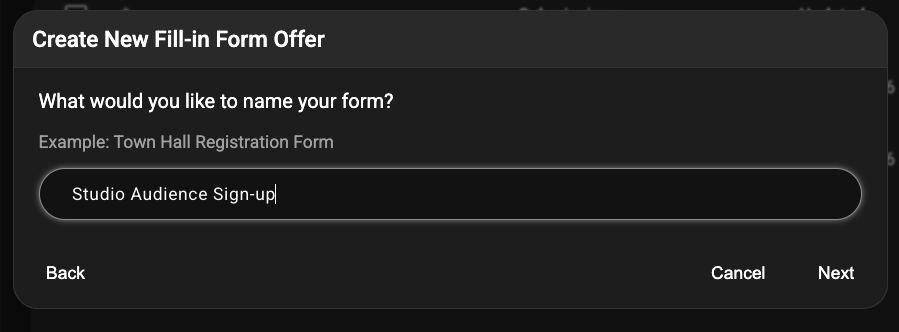
4) Give your form a name, then click Next.
5) For "Where should the offer appear?" choose Inline, then choose Create.
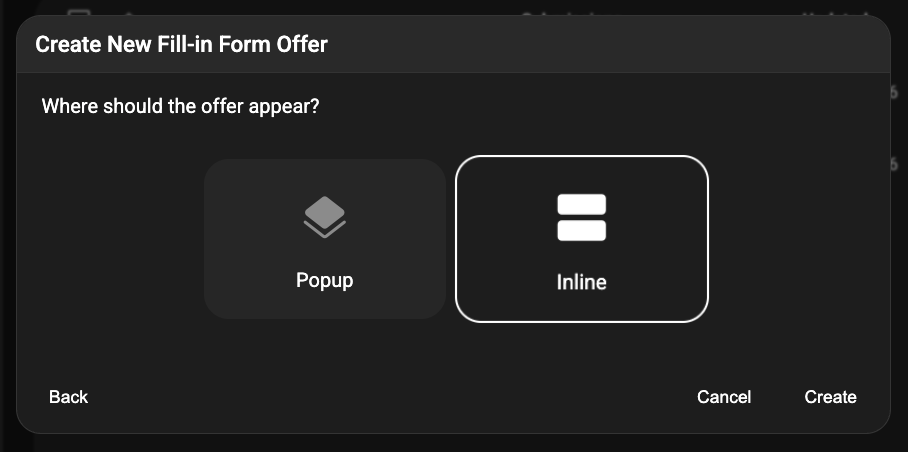
FIll-in Form Offers can also be displayed in a popup, for example after a person votes in a poll, but for this example, we'll display the form directly on the page, "inline" with other content.
6) The form is created with several basic fields to get you started, including Name, Email, and Comment.
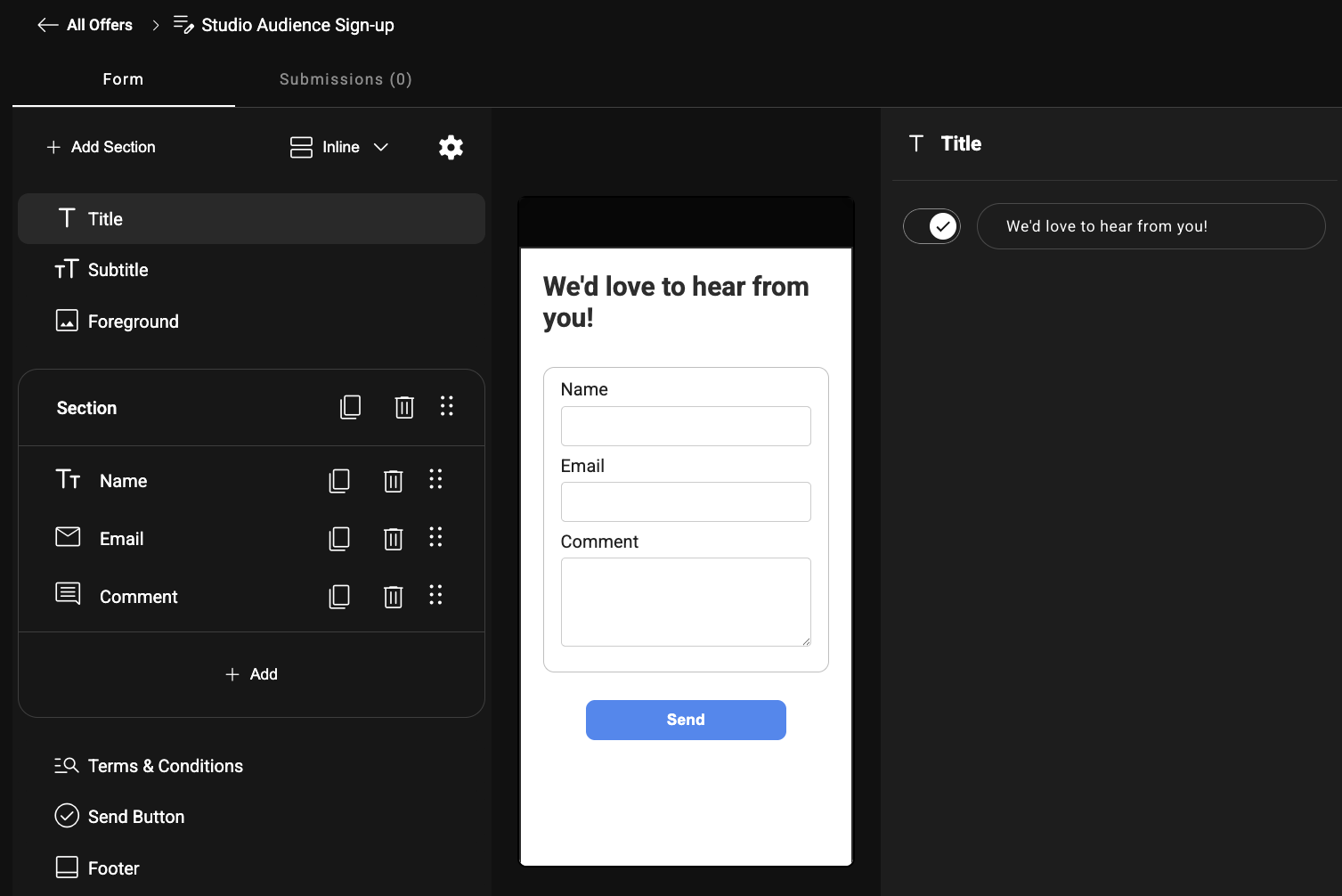
7) Use the details pane on the right to customize your form's labels. Use the + Add button on the left to add more form fields and sections to your form.
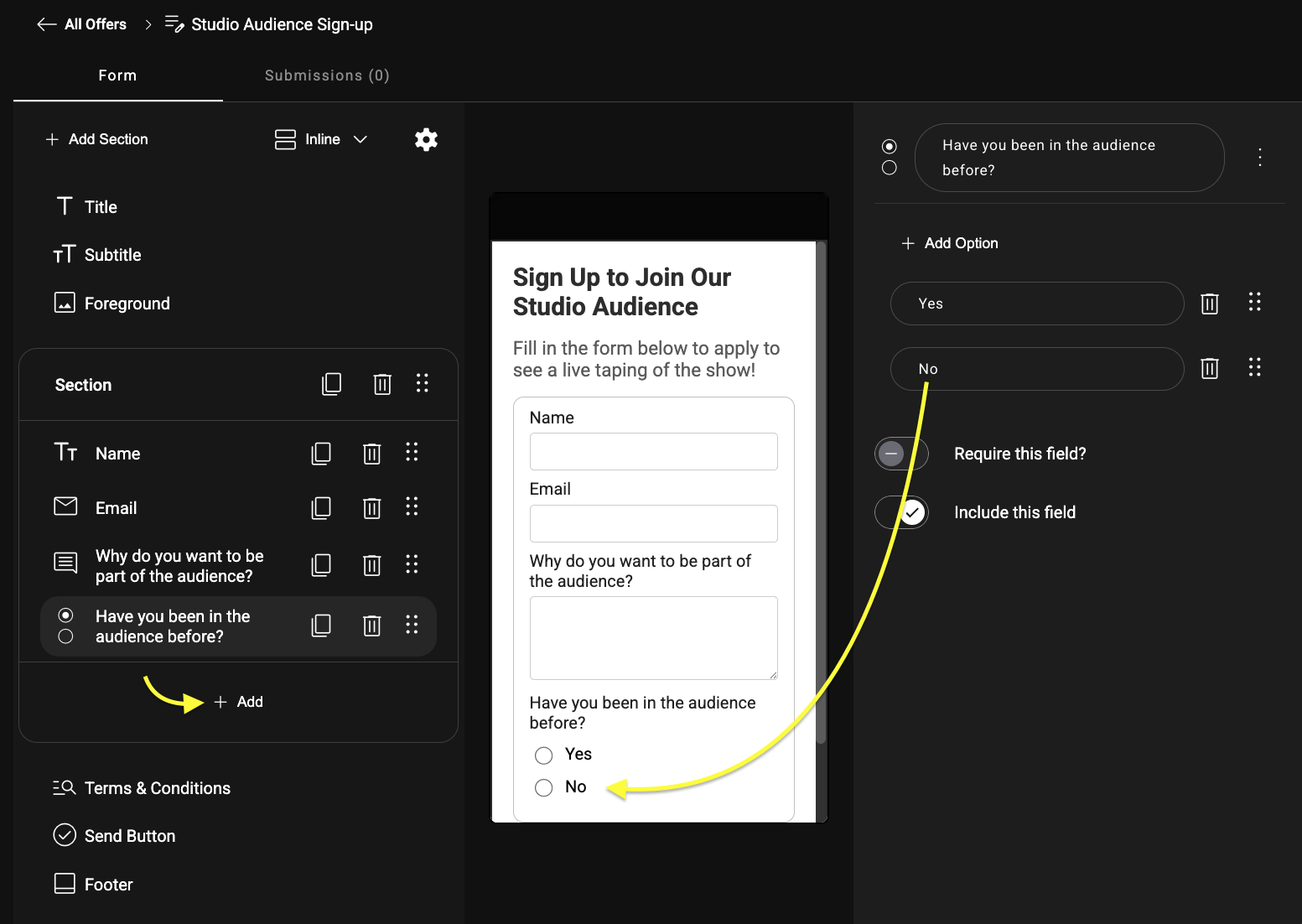
When you're done customizing your form, follow the steps below to add it to a page.
Add Your Form to a Page
1) From Studio's left-side menu, select Pages.
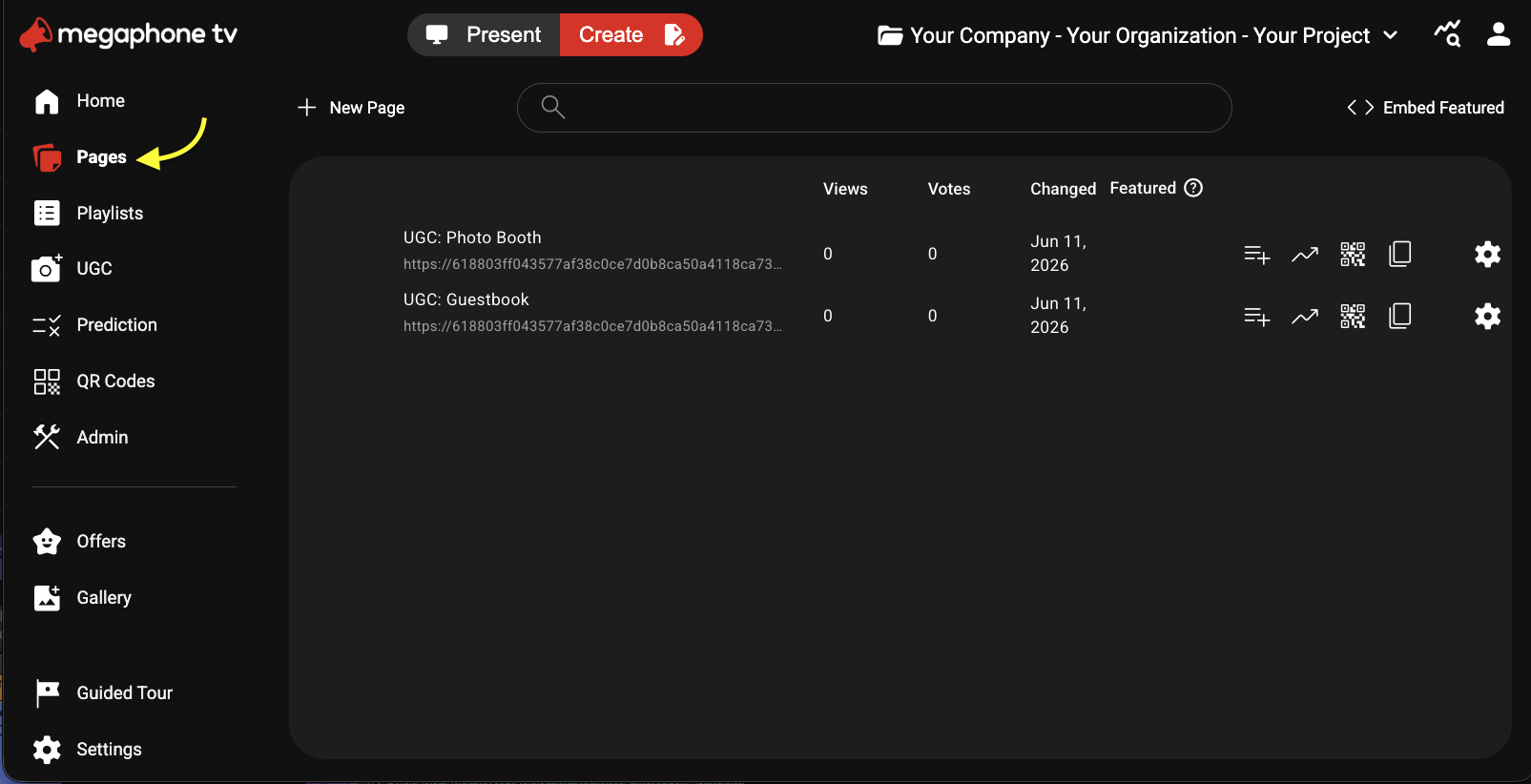
2) Select + New Page.
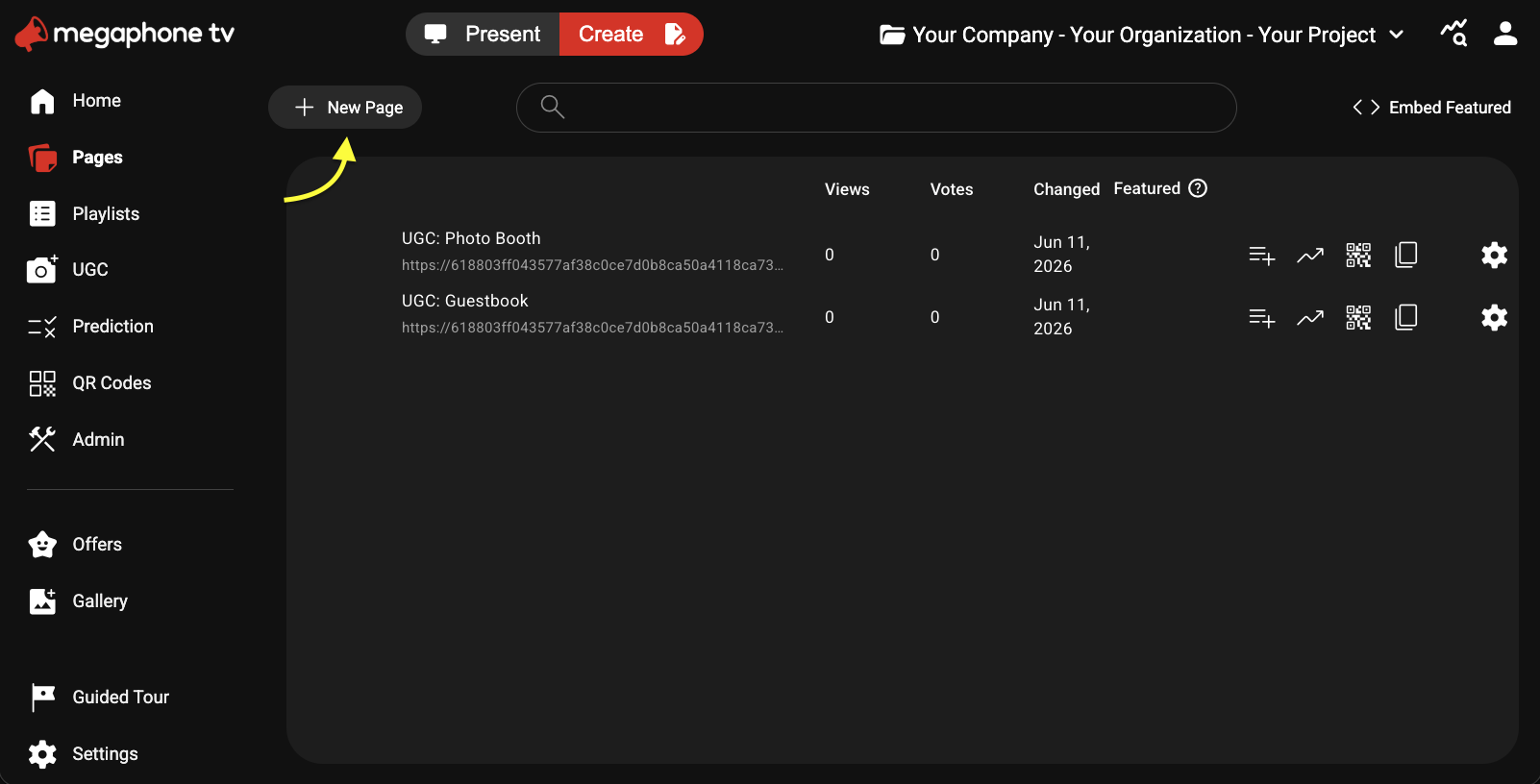
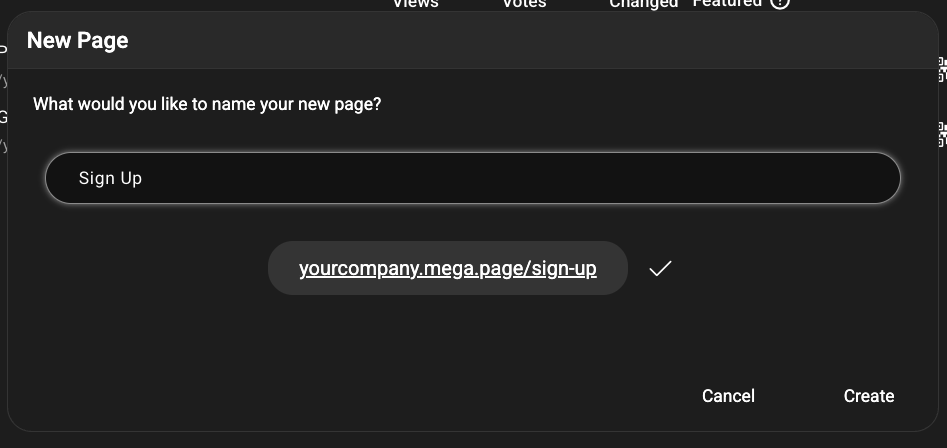
3) Give your Page a name. As you type, a friendly link for your form page will appear automatically. When you're happy with the name, select Create.
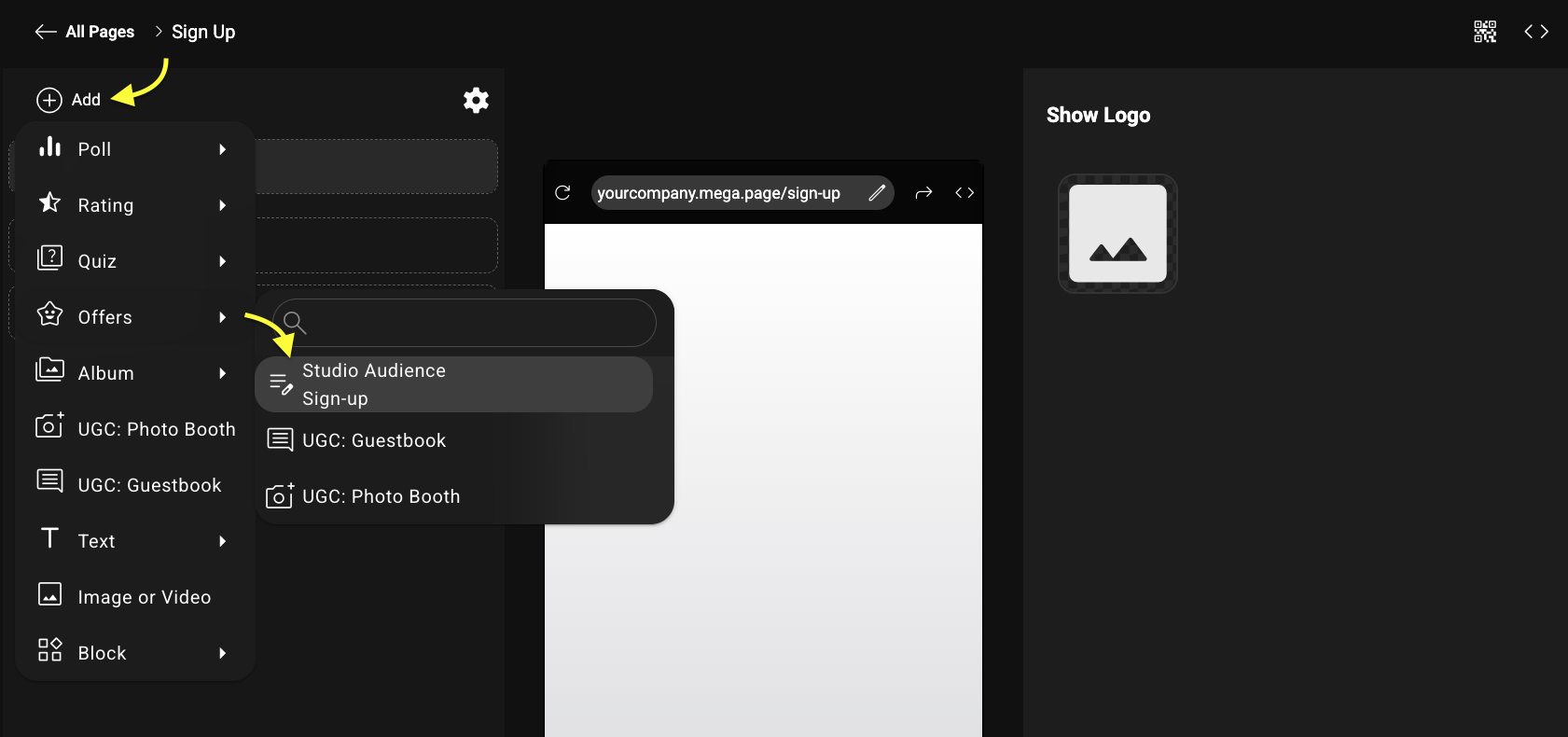
4) When the Page opens, click + Add, then click Offers, and choose your Form Offer. (In the example below, the Form Offer is "Studio Audience Sign-up".)
Your form is ready! You can now share the direct link or embed the Form Page on your website.
Share Your Form
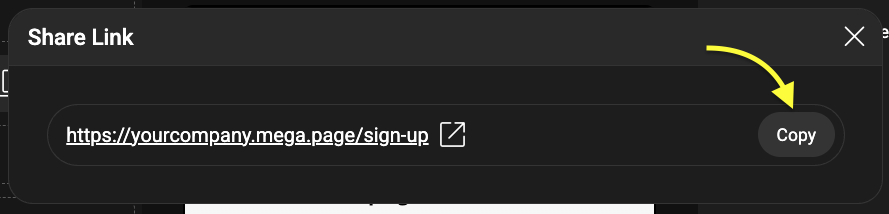
1) To share a direct link to your form, first click the Share button at the top right of the Page preview.
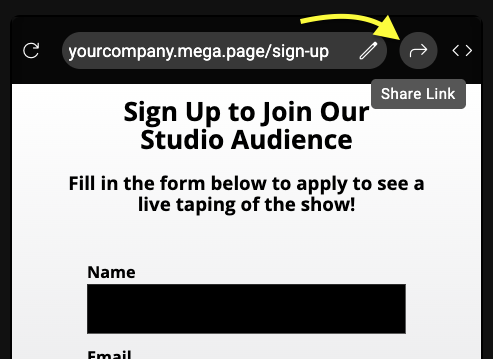
2) Then copy the link and send it to the people you want to share the form with.
Share Your Form's QR Code
Every Megaphone Page automatically comes with a QR code that points to your page. Follow the steps below to get the QR code for your form.
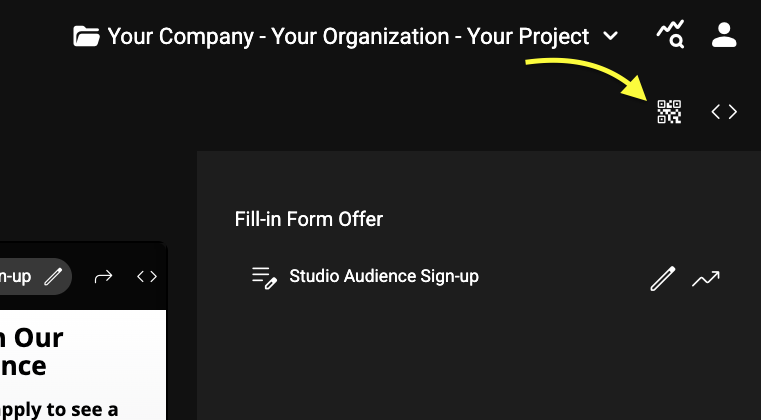
1) In the top-right corner of the Page, click the QR Codes button.
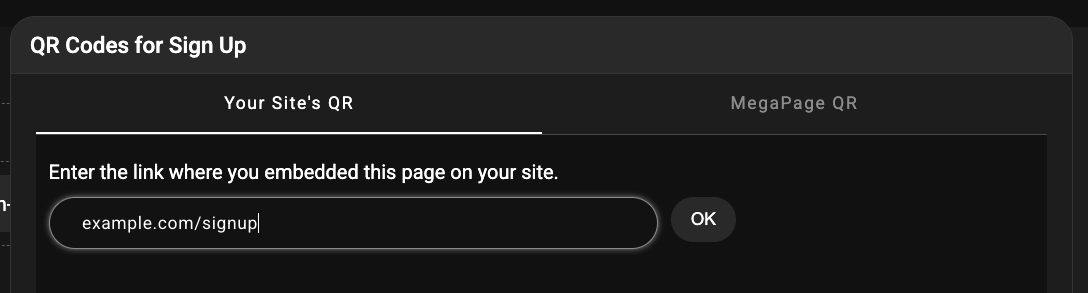
2) If you plan to embed your form on your website, enter the link to the page on your site where you'll be embedding the form, then click OK, wait for the QR to generate, and click Download QR.
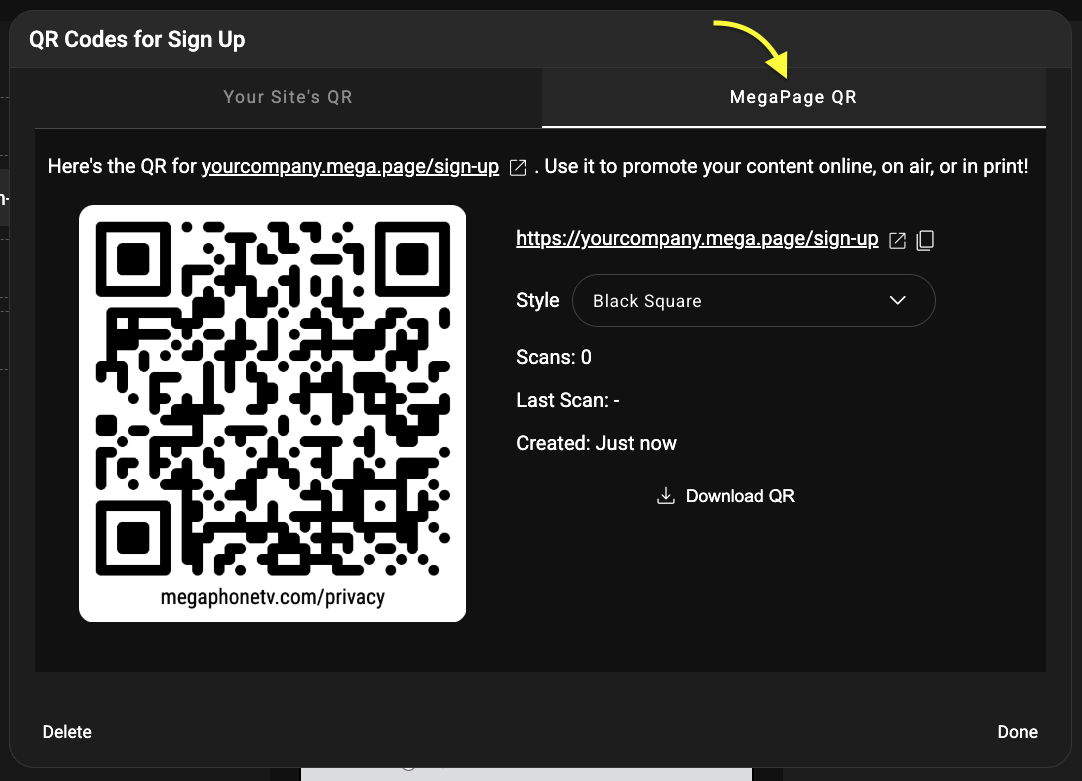
3) If you want people to visit your form's direct link, click MegaPage QR, wait for the QR to generate, then click Download QR.
Add Your Form to Your Website
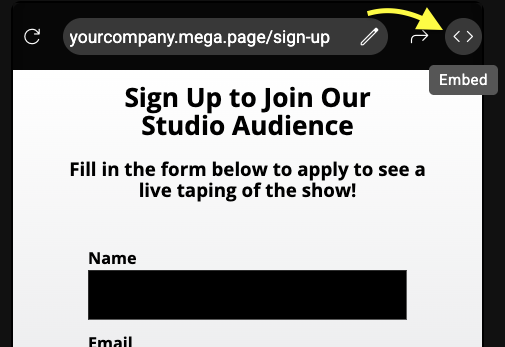
1) To embed your form on your website, click the embed button at the top right of the Page preview.
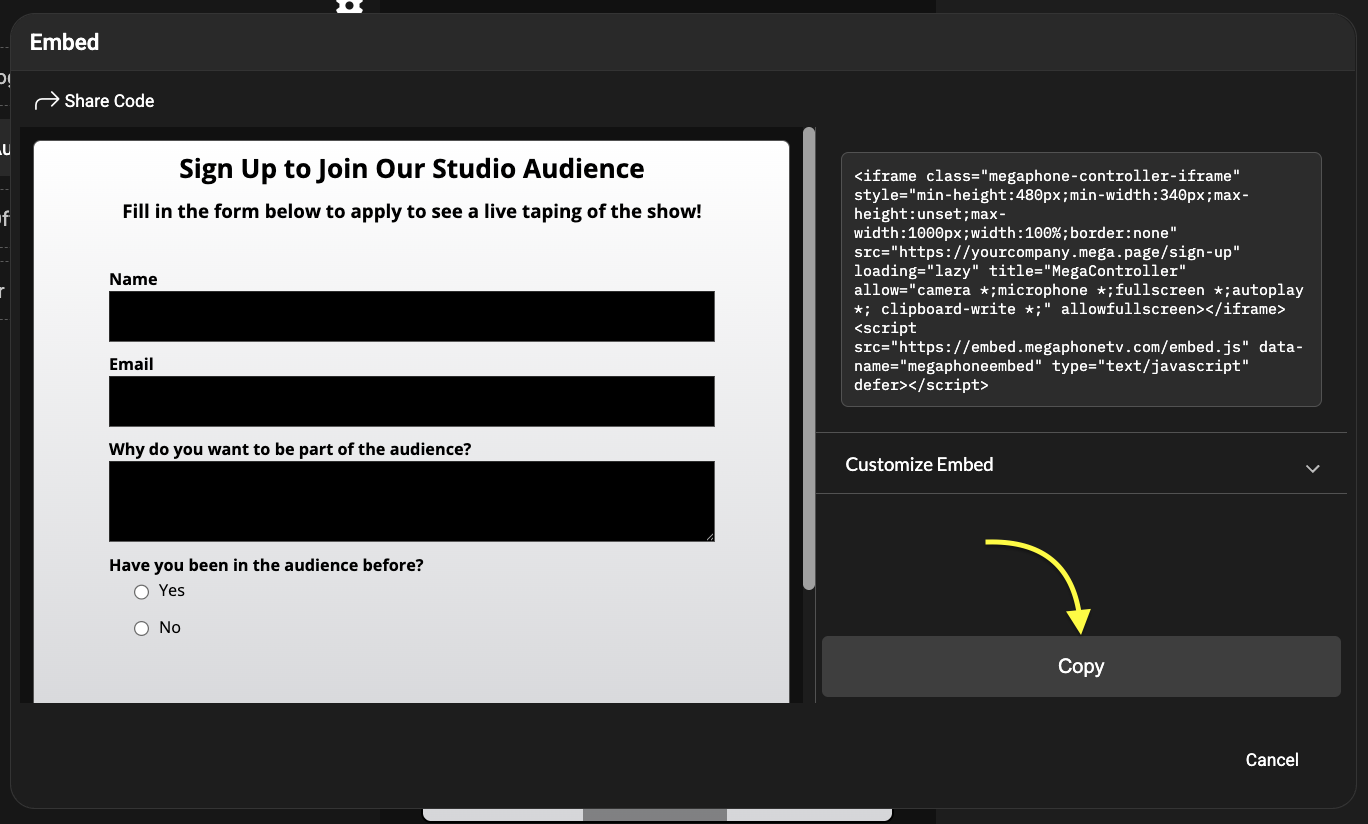
2) Click Copy, then paste the code into your website.
View Form Submissions
To view form submissions from people who have submitted the form, follow these steps.
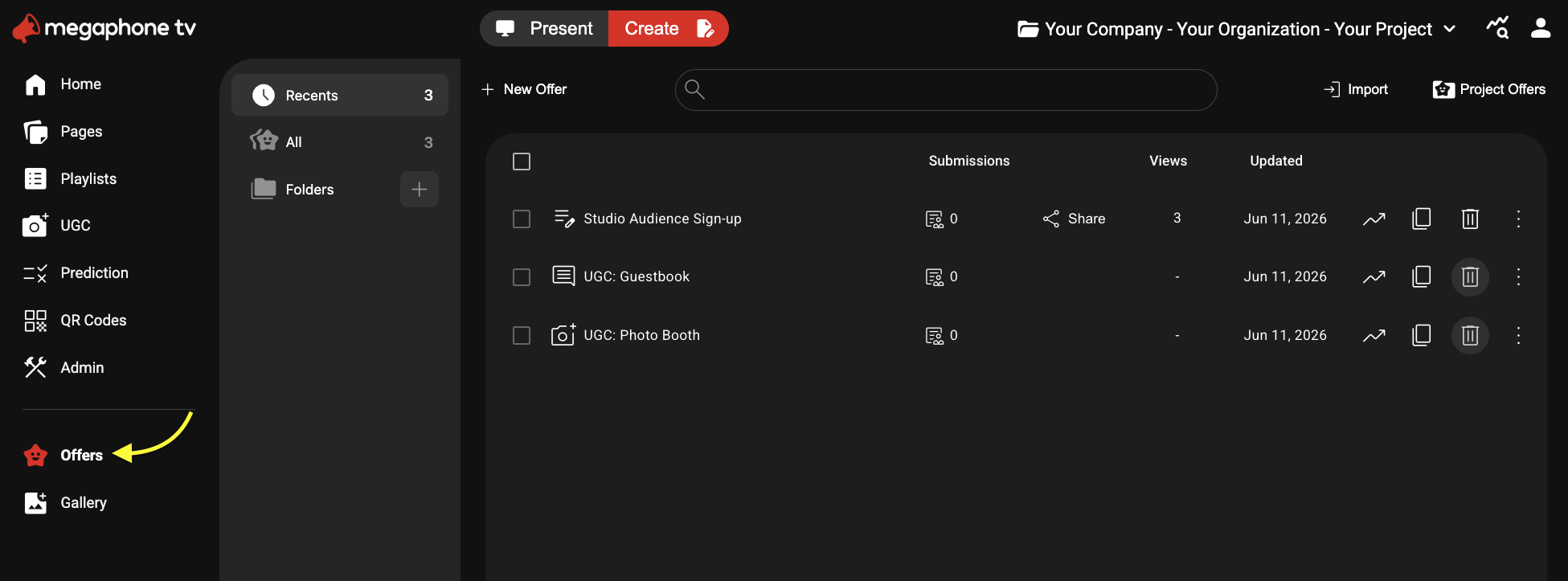
1) In Studio's left menu, click Offers.
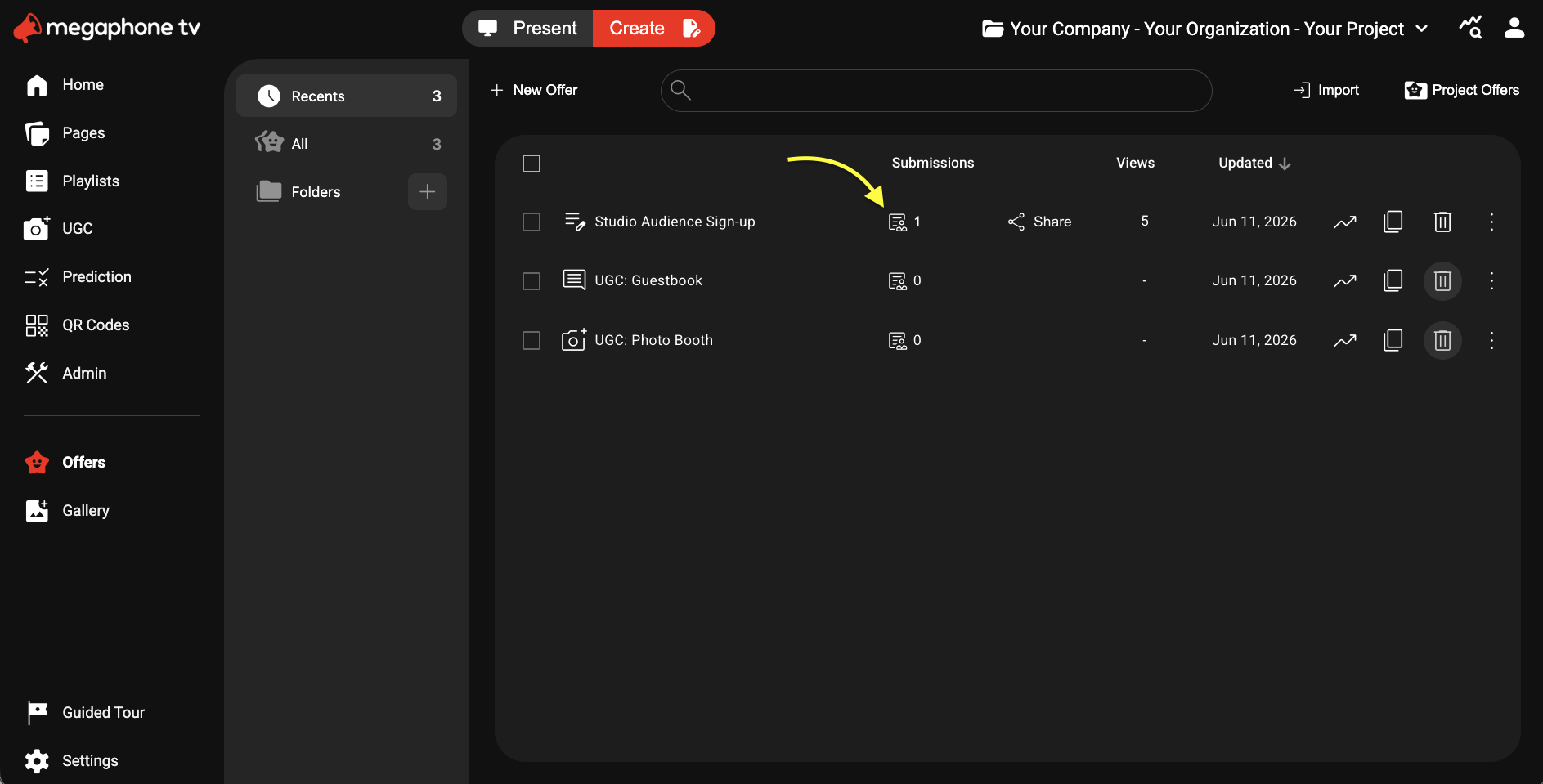
2) To the right of the Fill-in Form Offer's name, click the submissions button.
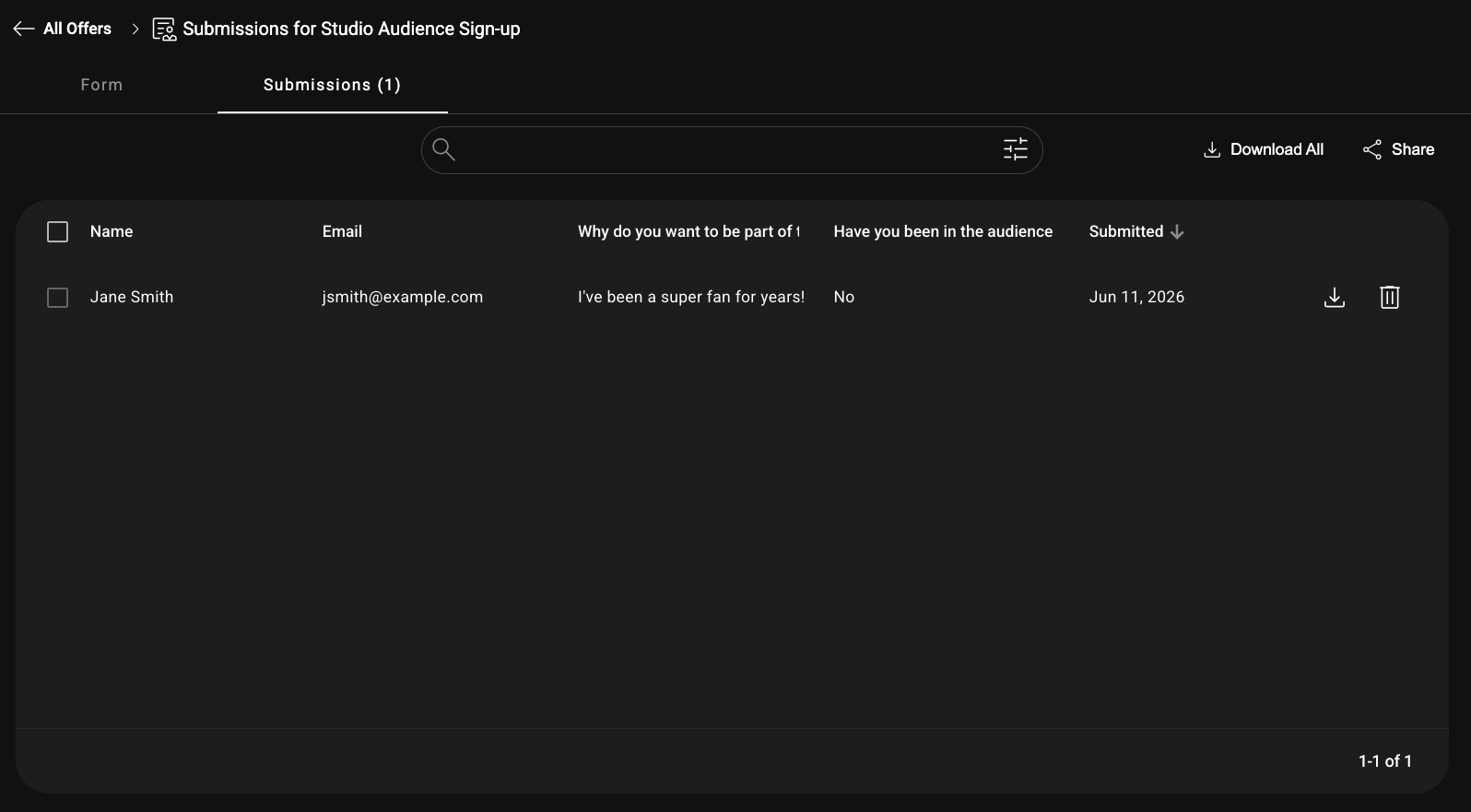
3) On the Submissions tab, you'll see all the form submissions in the order they were received, newest at the top. In the Submissions tab you can search, download, or share the submissions.
Was this article helpful?
That’s Great!
Thank you for your feedback
Sorry! We couldn't be helpful
Thank you for your feedback
Feedback sent
We appreciate your effort and will try to fix the article